In short: Happ for computers is a free app for Windows 10 and 11, macOS 13 and later, and Linux. You download it from the developer’s page: a regular PC needs setup-Happ.x64.exe, a Mac needs Happ.macOS.universal.dmg. The app has no servers of its own: you add a service’s subscription link, pick a server and press connect. For every program to go through the connection, not just the browser, you need TUN mode — below we cover how to turn it on and what to do when it won’t start.
The practical steps are below; if you'd rather skip the setup, Tainet connects in a couple of minutes - through the Telegram bot or in your account on this site.
Where to download Happ for PC and which file to pick
Happ has one publisher, Flyfrog LLC, and two official download points: the happ.info website (the old happ.su address leads there too) and the developer’s releases page on GitHub. Searching for “happ” turns up plenty of look-alike sites — don’t download from them: at best it’s the same program in an old version, at worst something else behind a familiar icon. If your subscription is from Tainet, you don’t have to search at all: the “Download” button in the connection guide in your personal account gives you the right file from the official page.
As of October 5, 2026 the current desktop version is 4.4.8. These are its files:
| Computer | Which file to download |
|---|---|
| A regular Windows PC or laptop | setup-Happ.x64.exe |
| A Windows laptop with an ARM processor (Snapdragon) | setup-Happ.arm64.exe |
| Any Mac — Intel or Apple M1–M4 | Happ.macOS.universal.dmg |
| Linux | .deb, .rpm or .pkg.tar.zst for your distribution, x64 and arm64 builds |
Not sure which processor you have? It’s almost certainly x64: ARM laptops with Windows are still rare. You can check under Settings → System → About, the “System type” line.
Minimum requirements
According to the official Happ documentation: Windows 10 build 1809 or later, or Windows 11, macOS 13 or later for the .dmg version, and modern Linux distributions such as Ubuntu 22.04 and Debian 11.6 or later.
For old systems the developer offers a separate Legacy version 1.0.2. To be honest about it: it’s an old build, and only fresh app versions understand the masking parameters of modern servers, so an old Happ may fail to connect even with a correctly added link. If your computer runs Windows 7 or 8, connecting your router is the more reliable route: it covers every device at home at once, this computer included — see the router guide.
How to set up Happ on Windows: five steps
-
Download and run the installer
setup-Happ.x64.exe. Your antivirus may get nervous — VPN clients create their own network adapter, and many security programs react to that. Allow the installation; if the antivirus deleted the file, add the Happ folder to its exclusions and install again. Since version 4.2.1 the Happ installer is digitally signed, but the SmartScreen window “Windows protected your PC” may still appear — click “More info” → “Run anyway”. -
Let the installer set up the Happ service. This is a background program that creates the virtual adapter for TUN mode. Since version 4.4.6 the installer checks that the service has started and won’t finish silently: if something goes wrong, it explains why and offers to retry. And since 4.4.8 there’s a fallback — finish the installation in proxy mode if the service couldn’t be set up (what that means is covered below).
-
Copy your subscription link in your personal account: on the main page, expand “Connect manually” and click “Copy link”. There’s also a button there that adds the subscription to Happ in one click, no copying needed.
-
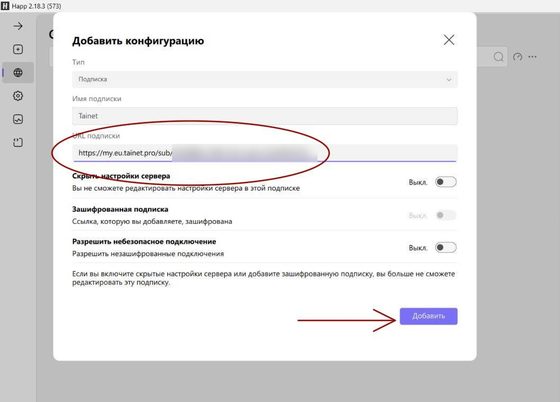
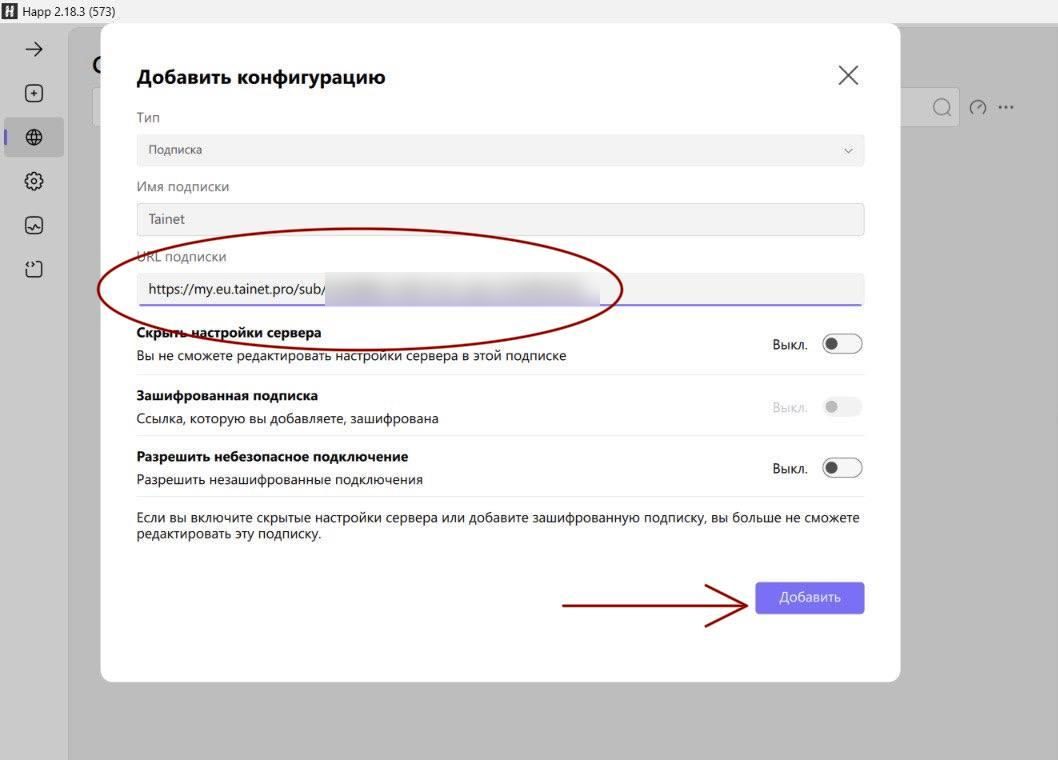
Add the subscription to Happ. On first launch the app shows a field for the link — paste it and confirm. If Happ is already set up, click ”+” and choose to add from the clipboard, or paste the link into the “Subscription URL” field. The profile with the server list loads by itself — what a VPN key is and why key, config and subscription mean the same thing is covered separately.
-
Pick a server and press connect. On the first connection Windows may ask for a firewall permission — allow it. Done: the Happ icon appears in the notification area by the clock, and you can reconnect and switch servers from it without opening the window.
The icon at the start of each line tells you which server to pick. In a Tainet subscription that’s ⚡ direct route (fastest, usually fine on home internet), 🛡 entry via a server in Russia (comes up where direct stays silent), 🎮 a lower-latency route for video and games, and ⚪ a fallback entry with a traffic cap. Go from top to bottom until one works.
TUN mode vs proxy mode: which one to turn on
This is the main question about Happ on a PC, and whether the app “works” at all depends on it. The Happ main screen has a mode switch:
| Mode | What goes through the connection | When to choose it |
|---|---|---|
| TUN | All computer traffic: browsers, games, messengers, any program | 🔴 Almost always. It’s the default in recent versions |
| Proxy | Only programs that follow the Windows system proxy — mostly browsers | When the Happ service won’t start and you need to connect right now |
| Both (Mixed) | Same as TUN, plus a local proxy for programs you configure by hand | Special cases; a regular user doesn’t need it |
The typical picture in proxy mode: everything works in the browser, while a calling app or a game client behaves as if there’s no connection. That’s not a fault: those programs simply don’t look at the system proxy. Turn on TUN and the whole computer goes through the connection.
Under the hood, TUN is a virtual network card that Happ creates through its service. The key consequence: without a running service, TUN won’t turn on. Since version 4.2.1 Happ uses the built-in Xray TUN tunnel by default — if you haven’t changed settings, there’s nothing to change. The same mode added per-app routing: you can send only selected programs through the connection.
Tainet — a subscription that works in any client in this table: copy the link, paste it, connect. Signing up takes 30 seconds in the Telegram bot or in your account on this site, the first 7 days are free, then from $0.10 a day — enough to try the clients out and settle on the one you like.
Try it →Russian websites directly, everything else through the connection
A common question from computer users: “I turned on Happ and my bank’s website behaves differently than without the connection.” The reason is that all traffic, including Russian websites, goes through a foreign server. Happ has routing for this — rules for which traffic goes through the connection and which goes around it.
You don’t need to build the rules by hand: the connection guide in your personal account has a step “Russian websites outside the VPN” with an “Apply rules” button. Click it and Happ adds a ready set: .ru and .рф zones, banks, Gosuslugi, Russian services and their content delivery networks, plus your local network — router, printer, TV — go directly, everything else through the connection. To add your own addresses, use the “Custom rules” button there.
🔴 Turn these rules on only if you are in Russia yourself. Abroad they do the opposite: Russian banks and Gosuslugi let you in from a Russian address, and that’s exactly what you get through the connection.
Happ on Mac: what’s different
Setting up on a Mac follows the same steps as Windows, with three differences.
Where to install from. Happ.macOS.universal.dmg works on any Mac — Intel and Apple M1–M4 alike. Happ for Mac also exists in the App Store, but not in the Russian storefront, so from Russia it’s installed from the file on the official page — or via the “Download” button in the guide in your personal account. You need macOS 13 Ventura or later; 2017 MacBooks usually update only to macOS 12, Pros to 13. Old Macs and other options are covered in VPN on a MacBook.
First launch. macOS may refuse to open an app that isn’t from the App Store. Open System Settings → Privacy & Security and click “Open Anyway”.
Administrator password. For TUN mode Happ installs its own background service on the Mac and asks for the administrator password once — that’s normal and only needed once. Older versions asked for the password after every wake from sleep; this was fixed in 4.4.6, just update the app.
What to do if Happ doesn’t work on your PC
The most common computer cases and what to do about them. The full list of errors with explanations, phones included, is in a breakdown of every Happ error.
The Happ service won’t start, TUN won’t turn on
If Happ says its service is unavailable, or TUN mode won’t start, Windows didn’t let the app create the virtual adapter. In order:
- Update Happ to the latest version. In September 2026 the developer shipped several fixes specifically for the service: since 4.4.8 it restarts itself after a crash, and its error message now includes an error code — write it down if you need to ask for help.
- Reset the service. Recent versions have a Reset service action that repairs the background service in place, without reinstalling.
- Check your antivirus. Security programs, including the built-in Windows Defender, sometimes silently stop the network driver. Add the Happ folder to exclusions.
- Turn off other VPN programs. Two clients with virtual adapters interfere with each other. Remove or disable the ones you don’t use.
- Reinstall Happ — since 4.4.8 uninstalling leaves nothing behind, so the installation starts from a clean slate.
Need to connect right now? Switch to proxy mode: the browser works immediately, and you can sort out TUN later.
”Xray core critical error” or core start error
Xray is the engine inside Happ that creates the connection. A core error is almost always about the app itself, not the subscription: update Happ (turn off the connection while updating — the app needs to download the new core), turn off the Noise and Fragment packets in both the app settings and the subscription properties, then delete the subscription and add it again. On Windows the error has two more common causes: the antivirus won’t let the core file run, and the Visual C++ 2015–2022 system libraries are missing — install them from Microsoft’s website, both x64 and x86.
No internet after sleep or closing the laptop lid
The icon says “connected” but websites don’t open. First update Happ: versions 4.4.6 and 4.4.8 fixed exactly these drops after sleep on Windows laptops. If it keeps happening, in order:
- Quit Happ (right-click the icon by the clock → exit) and shut the computer down completely: Start → Shut down while holding Shift. A regular Windows shutdown doesn’t fully reset networking by default.
- Didn’t help — in Happ disconnect, turn TUN mode off and on again, connect.
- Didn’t help — reset Windows networking: open Command Prompt as administrator, run
netsh winsock reset, thennetsh int ip reset, and restart the computer.
Connected, but websites don’t open
Most often the culprit is a second VPN that’s switched on — on the router or in another program: two tunnels at once get in each other’s way. Keep one. Next, switch to a server with a different icon and refresh the subscription with the button next to its name: the app keeps the server list for up to a day, and an old list looks like a fault. If your browser has proxy extensions, remove them — simply turning them off is sometimes not enough.
What to replace Happ with on a computer
On a phone the choice is wider: v2rayNG and installing it from an APK, for instance - the same principle, except the file does not come from a store.
The subscription isn’t tied to the app: the same link works in another client. If Happ won’t run on a particular computer, install INCY — it doesn’t have the Noise and Fragment settings that sometimes keep Happ from connecting, and it installs the same way on Windows. A detailed INCY setup is in a separate article. If you also need Happ on your phone, see the Happ guide for iPhone and Android — the steps there are shorter.
One Tainet subscription works on several devices at once — see what other devices the connection runs on besides your computer.
FAQ
Is Happ for PC free?
Yes, the app is free on every system, including Windows and Mac. You only pay for the subscription of the service you connect to. Tainet has a free trial period, then from 8 ₽ a day.
Can I install Happ on Windows 7?
Current versions — no: they need Windows 10 build 1809 or Windows 11. For old systems the developer has Legacy version 1.0.2, but it may fail to connect to modern servers. Setting up the connection on your router is more reliable — then a Windows 7 computer works through it without any app.
Do I need to enter the subscription again on my computer if it’s already on my phone?
It’s the same link — just copy it in your personal account and paste it into Happ on the computer. Nothing needs to be reissued; one subscription works on several devices.
Why does it work in the browser but not in other programs?
Happ is running in proxy mode: only programs that follow the system proxy go through the connection, mostly browsers. Switch the mode to TUN on the main screen and the whole computer goes through the connection.
Where is server ping in Happ for PC?
Latency is measured right in the server list — with the ping check button on the subscription; after a couple of seconds a number in milliseconds appears next to each server: the lower, the better. “n/a” instead of a number means the test connection didn’t get through at that moment; the server may still work — the real test is connecting.
How is Happ for Mac from the App Store different from the .dmg file?
The App Store version is built in Apple’s native language, while the .dmg is the cross-platform version, the same as on Windows and Linux. You add the subscription to both the same way. In Russia the App Store has no Mac version, so the .dmg is what you install.
Need a subscription that makes Happ work on your computer the first time? With Tainet the link is added to the app with a button from the connection guide, and the "Russian websites directly" rules with a second one. Get it in the Telegram bot or in your personal account on this site: the trial period is free, then from 8 ₽ a day, one subscription for your computer, phone and TV. Service won't start or TUN won't come up — write to support and include the error code from Happ.